
Choosing the right hosting can be a huge headache. If you pick the wrong one, your website loads slowly, your SEO drops, and managing the backend feels like trying to read a foreign language.
I deal with web hosting every single day. I don’t just test hosting platforms for fun; I actually use Hostinger for WordPress to run my own portfolio website and manage my clients’ websites. Today.
🔥 Deal Alert: Get up to 80% OFF + 20% Extra Discount
How to Setup WordPress on Hostinger (Step-by-Step)
Setting up WordPress used to require downloading files, creating databases, and dealing with FTP. Not anymore. If you want to get your site live, follow these exact steps. It takes less than 5 minutes.
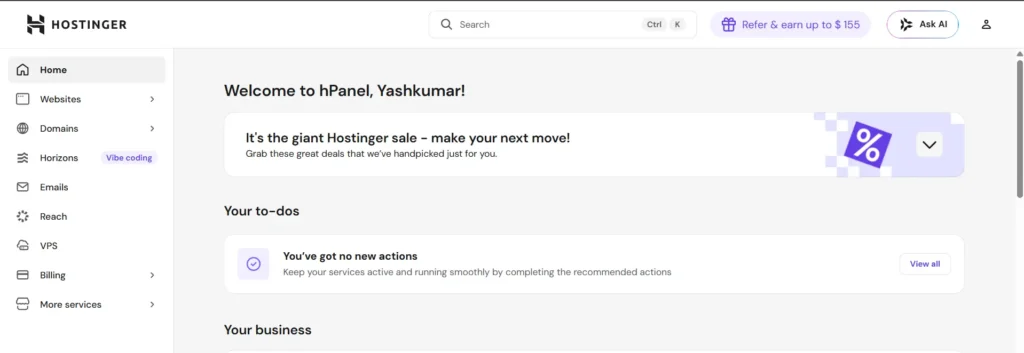
1. Login to your Hostinger account:
Enter your email and password to access the main hPanel.
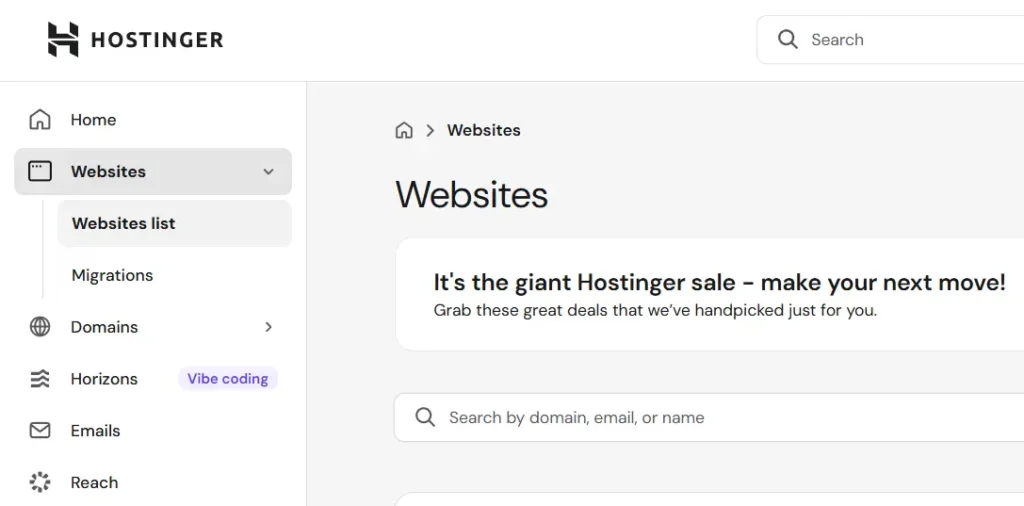
2. Go to the Websites section:
Click on the “Websites” tab in the top navigation bar.
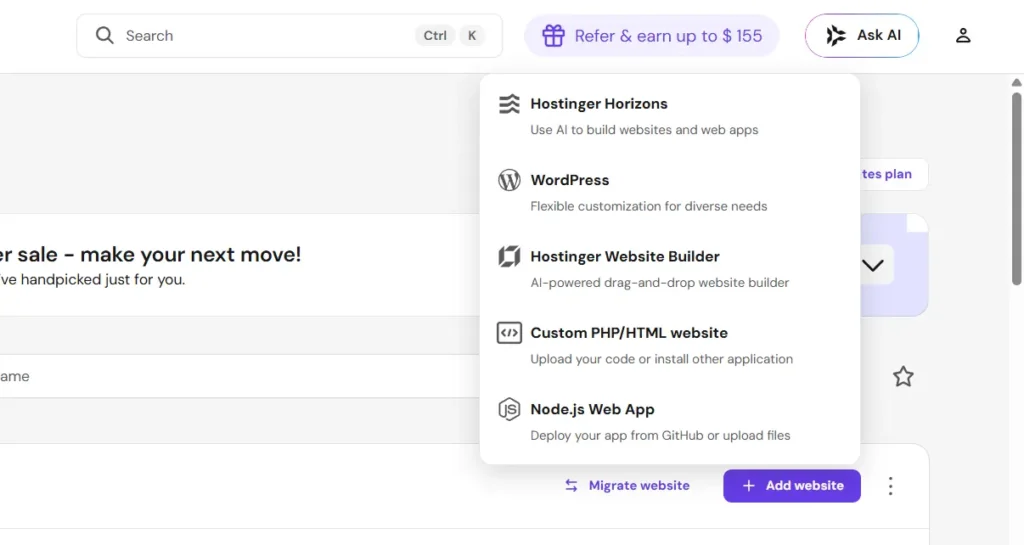
3. Click Add Website:
Look for the big button to create a new project. and The system will ask what platform you want to use. Select WordPress.
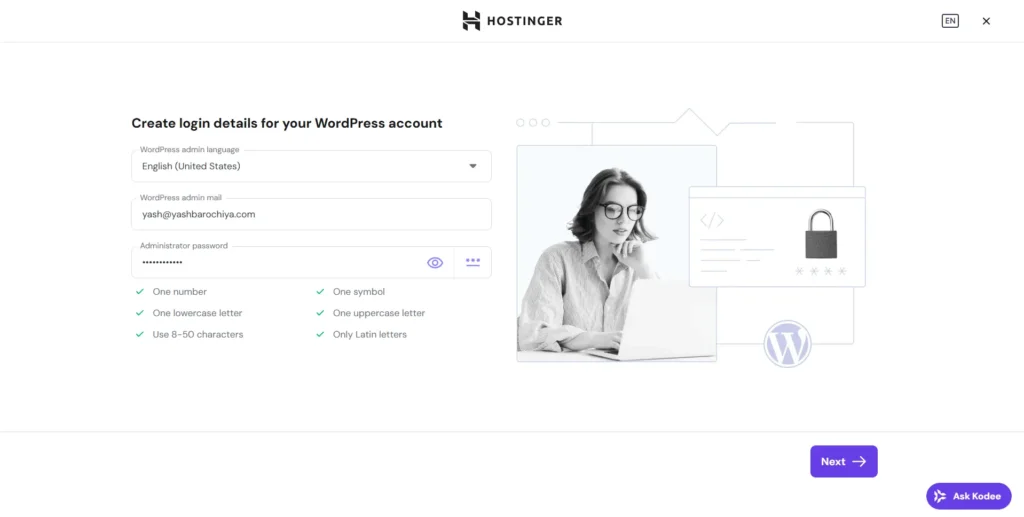
4. Enter your admin details:
Type in the admin email, a username, and a strong password.
Important: Remember these, as you will use them to log into your WordPress dashboard later!
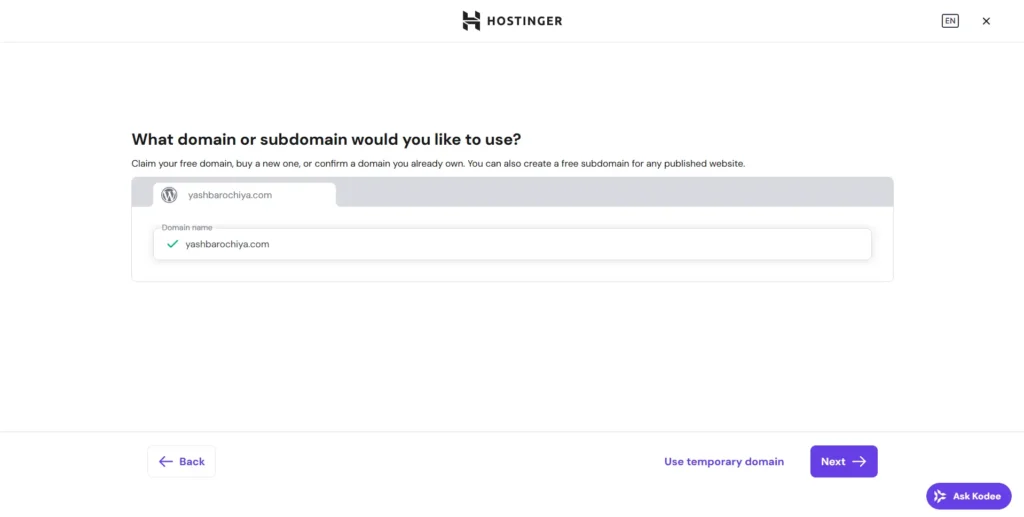
5. Select your domain name:
Choose the domain you want to connect to this new website.
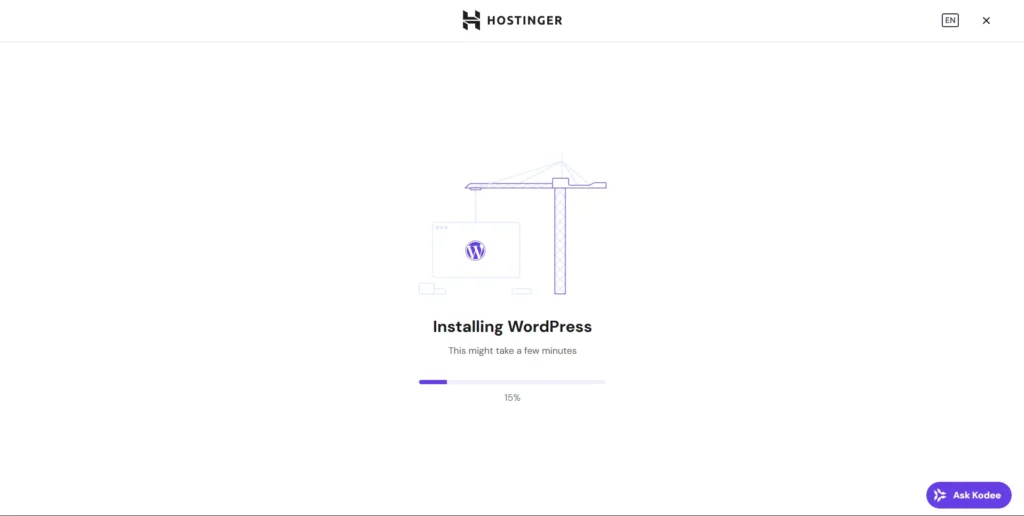
6. Click Next:
Hit the button and let the server do the work. It usually takes about 60 to 90 seconds.
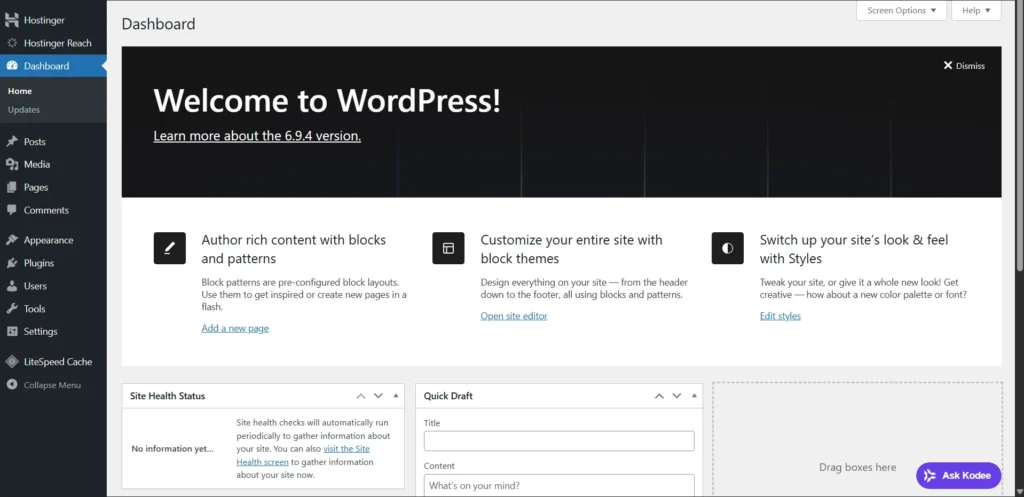
7. WordPress dashboard:
Once it finishes, They Auto go to [yourdomain.com/wp-admin](https://yourdomain.com/wp-admin) to start building!
Why Hostinger is Very Easy for WordPress (The Benefits)
There is a reason I host my clients here. It isn’t just about price; it’s about the features that actually make a developer’s life easier.
- hPanel is Simple: This is the biggest benefit. Hostinger built their own control panel (hPanel). It is modern, visually clean, and everything is exactly where you expect it to be.
- One-Click WordPress Install: As you saw in the steps above, the auto-installer does all the heavy lifting.
- Free SSL: A secure website is mandatory for Google. Hostinger automatically installs a free SSL certificate so your site shows the “padlock” icon instantly. No manual setup needed.
- Beginner Friendly: Even if you have zero coding knowledge, you can navigate the backend confidently.
Frequently Asked Questions (FAQ)
Is Hostinger actually good for Indian websites?
Yes! They have servers located in India (Mumbai), which means if your target audience is in India, your website will load incredibly fast for them.
Do I need to buy a domain separately?
Usually, no. Most of Hostinger’s premium and business hosting plans include a free domain name for the first year.
How do I contact customer support if I get stuck?
They offer 24/7 live chat support directly from the hPanel dashboard. I have found their response times to be very quick.
Does Hostinger provide daily backups?
This depends on your plan. Business plans usually include daily backups, while standard Premium plans offer weekly backups. You can easily restore your site with one click.
To sum it up, if you want to build a WordPress site without the technical headaches, Hostinger is a fantastic choice. I rely on it for my own digital presence and for my IT agency’s clients because the hPanel is incredibly intuitive, the setup is instant, and the LiteSpeed servers keep everything running fast.
🔥 Deal Alert: Get up to 80% OFF + 20% Extra Discount